2. Health Tip for March
Topic: Ergonomics at the Computer Workstation
Part 2: Ergonomic Practices at the Computer Workstation
Muscles, ligaments, bones, and intervertebral discs—the building blocks of the musculoskeletal system—require
movement
Without dynamic movement, even an optimal sitting position maintained consistently over time cannot prevent discomfort and wear and tear. Intervertebral discs, in particular, require constant movement with alternating phases of increased and decreased pressure. Fluctuating pressure differentials are the prerequisite for adequate nourishment of the intervertebral discs through the diffusion of nutrients and the removal of metabolic waste products. Ligaments and tendons stretch or shorten with insufficient movement or unilateral static strain. Muscles atrophy (wither away) when not used or become tense under monotonous strain.
So take advantage of every opportunity to move!
- Adjust your chair to a “dynamic” position and frequently alternate between sitting at the front, middle, and back of the seat.

- Take advantage of the legroom and stretch your legs out occasionally.
- Set up your work environment so that you have to get up (e.g., walking to the printer or the filing cabinet).
- Whenever possible, perform tasks while standing (e.g., talking on the phone, having conversations, thinking).
- Complete written work at a standing desk or other suitable work surface.
- Loosen up and stretch your muscles and ligaments with exercises. You can find instructions at:
Neck and Shoulder Pain ???
Employees who work at computer workstations often complain specifically of pain in the neck and shoulder area. These symptoms are also caused by increased strain on the musculoskeletal system due to poor posture and static work (maintaining a fixed posture) while using the keyboard and mouse. Health problems can be prevented or reduced if you follow these recommendations:
- When using the keyboard and mouse, rest your hands and forearms on your desk.
- Position the mouse on your desk so that you can move it with your hand rather than with your arm outstretched.
- When working at a computer, sit directly in front of the screen and avoid constantly turning your head or upper body.
- Position the screen on your work surface so that your head is slightly lowered when looking at the screen.
- Check your head posture if you wear bifocals for computer work. If you look at the screen through the near-vision portion, you’re likely overextending your cervical spine. These glasses are therefore not suitable for computer work.
- Have your eyes examined regularly by the company physician. Ms. Stemler (Tel.: 3920) schedules the preventive medical examination for computer work (G37). During the examination, the need for computer glasses will also be discussed.
- Information about the eye exam:
http://www.uni-kl.de/fileadmin/ha-z/PDF/Augenuntersuchungen_01.pdf
(via the intranet)
For additional information on workplace ergonomics, visit:
http://www.uni-kl.de/universitaet/organisation/verwaltung/vertretungen-und-fachkraefte/betriebsarzt/
Questions?
If you have any further questions regarding computer workstations, please feel free to contact the company physician:
Phone: 205-4333
Office hours: Mondays by appointment and Tuesdays between 8:15 a.m. and 10:00 a.m.
Email: betriebsarzt[at]verw.uni-kl.de
Legal Sources and Standards
- Regulation on Work with Display Screen Equipment: § 4 Requirements for Design; Annexes Nos. 4, 10, 12, 15, and 16
- Occupational Safety and Health Act: Sections 5 and 6—Assessment and Documentation of Working Conditions
- DIN 66 234, Part 6: Computer Workstations; Workplace Design, with Supplement, Examples
- ZH 1/535 Safety Rules for Office Workstations
- ZH 1/618 Safety Rules for Computer Workstations in Office Environments
- Accident Prevention Regulation VBG 104: Computer Workstations (Draft)
- Did you know that back pain is the most common complaint among Europeans and North Americans?
- that studies show that over 60% of employees working at computer workstations experience pain?
- that health complaints at computer workstations are less common among employees performing skilled, varied, and challenging tasks than among those performing less skilled tasks (see chart)?
- that musculoskeletal disorders account for more than 30% of days lost due to work disability?
- that back and lower back pain ranks second among causes of disability, following mental health conditions?

An ergonomic design of the computer workstation can reduce unnatural postures and alleviate the physical strain caused by computer work. In accordance with the principle “the dose makes the poison,” this applies particularly to workstations where tasks are performed for long periods and in a monotonous manner (e.g., data entry, word processing). Therefore, it is important to check the setup and adjustment of work equipment at the workstation according to the following criteria and—if necessary—to correct them.
Position of the monitor on the desk
If the monitor is used frequently, it should be positioned so that you can look at it without having to turn your head or upper body.

For occasional or infrequent users, the screen can also be placed at the edge of the field of view (viewing angle of no more than 15° to the right or left). This has the advantage of not blocking eye contact with colleagues. A stand or monitor swivel arm facilitates flexible setup of the workstation.
Screen Height
The monitor is at the correct height when the top line of text is below eye level. This ensures that the head is neither stretched too far back nor tilted too far downward. This prevents excessive strain on the neck and shoulder area. A monitor positioned too low encourages unhealthy, forward-leaning posture. A screen positioned too high often causes tension in the neck muscles and strains the cervical spine due to unnatural hyperextension. For a relaxed head posture, the line of sight should be lowered by about 35° toward the center of the monitor.

Distance from the Screen
The viewing distance from the screen should be at least 50 cm for a 15-inch monitor and 60 cm for a 17-inch monitor. More recent studies even recommend a distance of 70 cm. If the monitor is placed farther away, a larger font size is required. As monitor sizes increase—for example, to 19 or 21 inches—the required viewing distances also increase.
Screen Placement in the Room
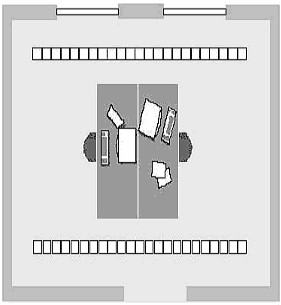
When setting up the device, care should be taken to avoid glare from bright surfaces or lights on the monitor. Excessive contrast in the field of view also strains the eyes, causes fatigue, and has a detrimental effect on work posture. The monitor should also not be placed directly next to a window (minimum distance of 60 cm) or in front of one. If glare and reflections caused by light entering through the window cannot be avoided, light-blocking devices (slats, roller shades, venetian blinds, etc.) must be used.
The monitor is positioned correctly if
Using the Document Holder
A document holder within the field of vision not only helps frequent writers avoid tiring working postures. To do so, it must be large enough—that is, it must accommodate the documents being used. In addition, it should be adjustable in height and angle, stable, low-glare, and able to be positioned freely on the work surface. To prevent the eye from having to constantly adjust to different distances, the viewing distance between the eye and the document should be the same as that between the screen and the eye. Paper clips and a line ruler are also useful.
Height of the Office Chair and Desk
The seat height of the work chair is correct when the forearm resting on the work table forms a right angle with the upper arm. The feet should be flat on the floor, and the upper and lower legs should also form at least a right angle.
For height-adjustable work tables, first adjust the height of the work chair and then the height of the work table so that the above requirements are met.
For non-height-adjustable work tables (height 72–74 cm), the work chair should be adjusted so that when the hand rests on the work surface, the upper and lower arms form a right angle. People who are under 160 cm tall generally need a footrest. Tall people (height > 185 cm) cannot sit ergonomically at a standard work table. They should therefore be provided with a height-adjustable work table.

Computers, bags, trash cans, and containers must not obstruct legroom.
Note
Health problems and premature degenerative changes can only be avoided if work equipment that has been correctly set up or adjusted is also used or operated in an ergonomically correct manner. You can find more information on this topic in the next “Health Tip”: “Ergonomic Practices at the Computer Workstation.”
Questions?
If you have further questions about this or other topics related to computer workstations, please feel free to contact the company physician:
Tel: 205-4333
Office hours: Mondays by appointment and Tuesdays between 8:15 a.m. and 10:00 a.m.
Email: betriebsarzt[at]verw.uni-kl.de
http://www.uni-kl.de/universitaet/organisation/verwaltung/vertretungen-und-fachkraefte/betriebsarzt/
Legal Sources and Standards
- Regulation on Work with Display Screen Equipment: Section 4 Requirements for Design; Annexes Nos. 4, 10, 12, 15, and 16
- Occupational Safety and Health Act: §5, §6 Assessment and Documentation of Working Conditions
- DIN 66 234, Part 6: Computer Workstations; Workplace Design, with Supplement, Examples
- ZH 1/535 Safety Rules for Office Workstations
- ZH 1/618 Safety Rules for Computer Workstations in Office Environments
- Accident Prevention Regulation VBG 104: Computer Workstations (Draft)
This web page does not yet exist.